
Install Jonot
Download all Jonot native apps from
downloads.jonot.io. Each release has a versioned
archive path that does not change and a latest/ path that updates with each
release and has a short cache lifetime.
Jonot Host
Section titled “Jonot Host”The Jonot Host app runs on a back-office Linux machine and keeps queues running through internet outages, syncing automatically when connectivity returns.
| Package | Link |
|---|---|
Debian / Ubuntu (.deb) | jonot-host-linux.deb |
Fedora / RHEL (.rpm) | jonot-host-linux.rpm |
Install via apt (Debian / Ubuntu)
Section titled “Install via apt (Debian / Ubuntu)”Add the Jonot repository once, then use apt upgrade for future updates:
curl -fsSL https://downloads.jonot.io/host/latest/jonot-host-public.asc \ | sudo gpg --dearmor -o /usr/share/keyrings/jonot-host.gpgecho "deb [signed-by=/usr/share/keyrings/jonot-host.gpg] https://downloads.jonot.io/host/apt stable main" \ | sudo tee /etc/apt/sources.list.d/jonot-host.listsudo apt update && sudo apt install jonot-hostInstall via dnf/rpm (Fedora / RHEL)
Section titled “Install via dnf/rpm (Fedora / RHEL)”Add the Jonot repository once, then use dnf upgrade for future updates:
sudo rpm --import https://downloads.jonot.io/host/latest/jonot-host-public.ascsudo tee /etc/yum.repos.d/jonot-host.repo <<'REPO'[jonot-host]name=Jonot Hostbaseurl=https://downloads.jonot.io/host/rpmenabled=1gpgcheck=1repo_gpgcheck=1gpgkey=https://downloads.jonot.io/host/latest/jonot-host-public.ascREPOsudo dnf install jonot-hostmacOS and Windows
Section titled “macOS and Windows”| Package | Link |
|---|---|
macOS (.dmg) | JonotHost-latest.dmg |
Windows (.msi) | JonotHost-latest.msi |
The macOS and Windows builds check for updates automatically, with Sparkle on
macOS and WinSparkle on Windows, and ask you to confirm each install. The Linux
.deb / .rpm packages update through the apt/dnf repository configured
above. To open the macOS build the first time, see
macOS: open the app the first time.
Jonot Kiosk, Desk, and Display desktop clients
Section titled “Jonot Kiosk, Desk, and Display desktop clients”The kiosk, desk, and display apps also run as native desktop clients on Windows, macOS, and Linux. They show the web app in an embedded Chromium-based browser engine, which downloads once during the first run. They support the same branding, languages, and live updates as the web apps.
The kiosk client prints tickets on an ESC/POS receipt printer connected over the network or USB. See Customise the Kiosk for the supported printers. The desk does not print tickets. It shows a banner when a kiosk printer at the location is offline. The kiosk and desk clients switch to an on-premises host during internet outages. These features are not available in a browser. The kiosk also runs in fullscreen mode, blocks common shortcuts, and requires a PIN to exit. The display is output-only. It does not print or require a PIN to exit. On macOS and Windows it starts automatically when you sign in and keeps the screen awake. On Linux it starts automatically on GNOME and KDE after you open it once, blocks system sleep, and asks GNOME and KDE Plasma to keep the screen awake. On other desktops, or if the screen still blanks, you might need to turn off screen blanking and the screen lock. See Keep the display awake. To let a display recover after a power cut, set the device to sign in to the display’s account automatically.
The kiosk, desk, and display clients check for updates automatically once a day. No client installs an update on its own. An operator must confirm each install:
- macOS — Sparkle finds the update. The desk and display show an update banner. The kiosk shows the update in its PIN-protected manager menu because it runs in fullscreen mode. Choose to install the update, or postpone it. If you postpone the update before it downloads, the client offers it again at the next check. If you postpone it after it downloads, Sparkle can install it the next time the client quits.
- Windows — WinSparkle asks once whether it may check for updates automatically. It asks the second time you open the client, not the first. If you decline, the client does not check for updates, and you must install new versions from this page. After you allow it, WinSparkle shows its own update window when an update is available. If the installer reports that files are in use, close the client and continue. To close the kiosk, choose Exit Kiosk in its manager menu.
- Linux — the desk and display show an update banner, and the kiosk shows an
Install update action in its manager menu. The client downloads the new
.debor.rpm, verifies it, opens it in the system package installer, and quits. Open the kiosk, desk, or display again after the install finishes. If the display reopened before the install finished, restart the display or the computer so that it runs the new version. If no package installer opens, or the account cannot install software, download the package from this page and install it from a terminal as an administrator, for examplesudo apt install ./jonot-kiosk-linux-amd64.deborsudo dnf install ./jonot-kiosk-linux-amd64.rpm. The Linux desktop clients have no apt or dnf repository.
To open a macOS client the first time, see macOS: open the app the first time.
Jonot Kiosk (desktop)
Section titled “Jonot Kiosk (desktop)”| Package | Link |
|---|---|
macOS (.dmg) | JonotKiosk-latest.dmg |
Windows (.msi) | JonotKiosk-latest.msi |
Debian / Ubuntu (.deb, amd64) | jonot-kiosk-linux-amd64.deb |
Debian / Ubuntu (.deb, arm64) | jonot-kiosk-linux-arm64.deb |
Fedora / RHEL (.rpm, amd64) | jonot-kiosk-linux-amd64.rpm |
Fedora / RHEL (.rpm, arm64) | jonot-kiosk-linux-arm64.rpm |
Jonot Desk (desktop)
Section titled “Jonot Desk (desktop)”| Package | Link |
|---|---|
macOS (.dmg) | JonotDesk-latest.dmg |
Windows (.msi) | JonotDesk-latest.msi |
Debian / Ubuntu (.deb, amd64) | jonot-desk-linux-amd64.deb |
Debian / Ubuntu (.deb, arm64) | jonot-desk-linux-arm64.deb |
Fedora / RHEL (.rpm, amd64) | jonot-desk-linux-amd64.rpm |
Fedora / RHEL (.rpm, arm64) | jonot-desk-linux-arm64.rpm |
Jonot Display (desktop)
Section titled “Jonot Display (desktop)”| Package | Link |
|---|---|
macOS (.dmg) | JonotDisplay-latest.dmg |
Windows (.msi) | JonotDisplay-latest.msi |
Debian / Ubuntu (.deb, amd64) | jonot-display-linux-amd64.deb |
Debian / Ubuntu (.deb, arm64) | jonot-display-linux-arm64.deb |
Fedora / RHEL (.rpm, amd64) | jonot-display-linux-amd64.rpm |
Fedora / RHEL (.rpm, arm64) | jonot-display-linux-arm64.rpm |
For tamper-resistant public installs, layer an OS-level kiosk profile under the desktop kiosk — see Lock down the desktop kiosk.
Windows: getting past the security warnings
Section titled “Windows: getting past the security warnings”The Windows .msi installers are not yet code-signed. Until they are,
Windows shows “Unknown publisher”. Microsoft Edge and Microsoft Defender
SmartScreen also block the file the first time you download and run it. These
warnings appear because the installer is new and has few downloads. They do not
mean that the download is damaged.
Step 1 — allow the download in Microsoft Edge
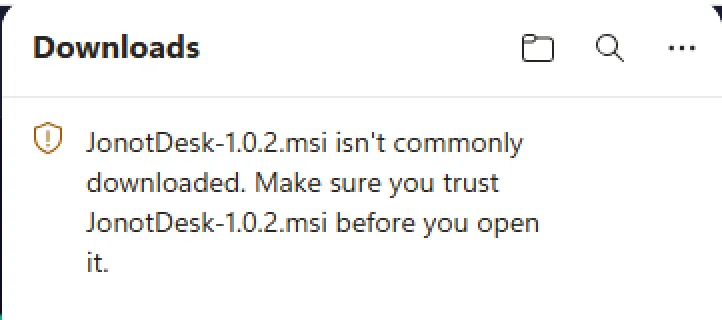
Section titled “Step 1 — allow the download in Microsoft Edge”Edge refuses to keep the file at first, showing “JonotDesk-x.y.z.msi isn’t
commonly downloaded. Make sure you trust it before you open it.” (The exact
filename depends on the link you used — the latest/ links download as
JonotDesk-latest.msi.)
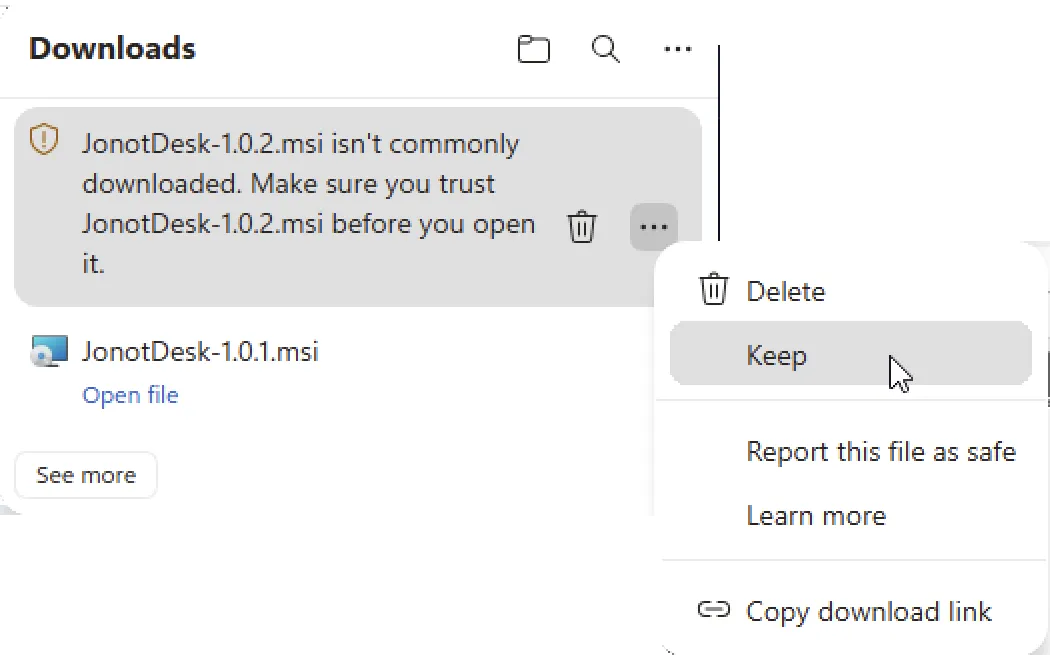
Open the Downloads panel (the ↓ icon in the toolbar), hover the blocked
item, click the ⋯ (more actions) button next to it, and choose Keep.
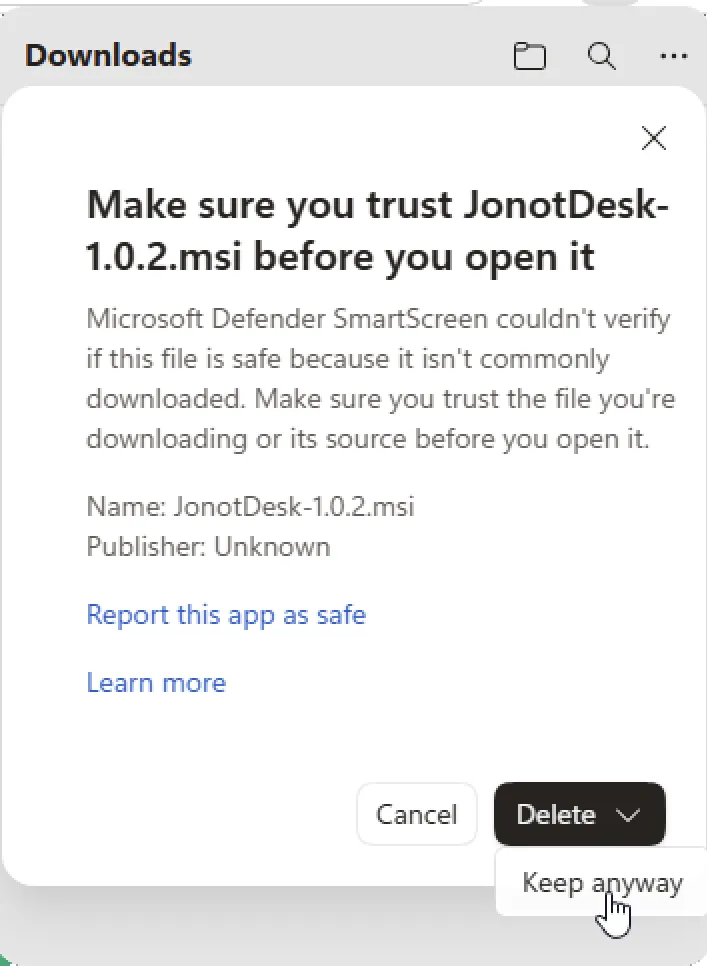
Edge asks for one more confirmation: “Make sure you trust JonotDesk-x.y.z.msi before you open it.” Click the Keep anyway button (you may need to expand the split Delete button to reveal it).
The download is now kept and an Open file link appears. Click it to launch the installer.

Step 2 — allow the app to run past SmartScreen
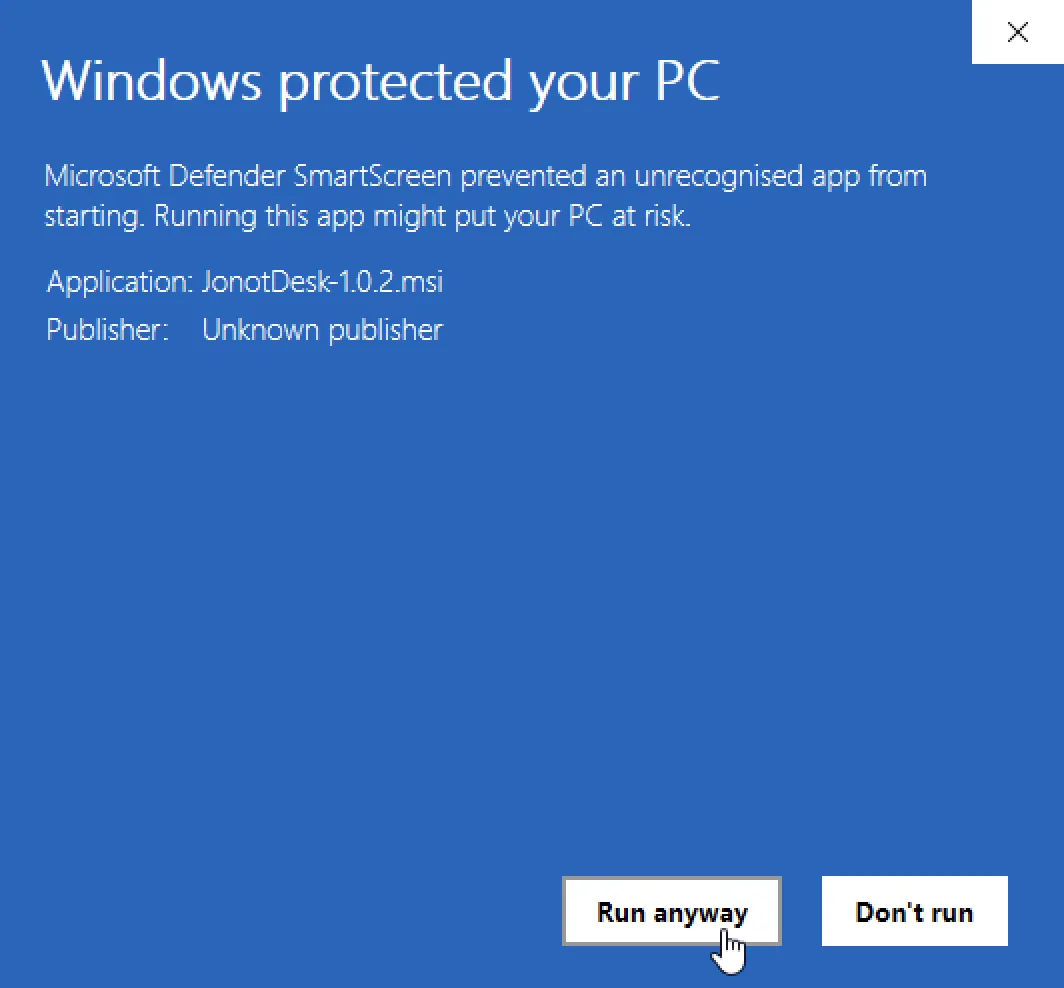
Section titled “Step 2 — allow the app to run past SmartScreen”The first time the installer runs, Microsoft Defender SmartScreen stops it with the message “Windows protected your PC … prevented an unrecognised app from starting.” Click More info to show the hidden Run anyway button.
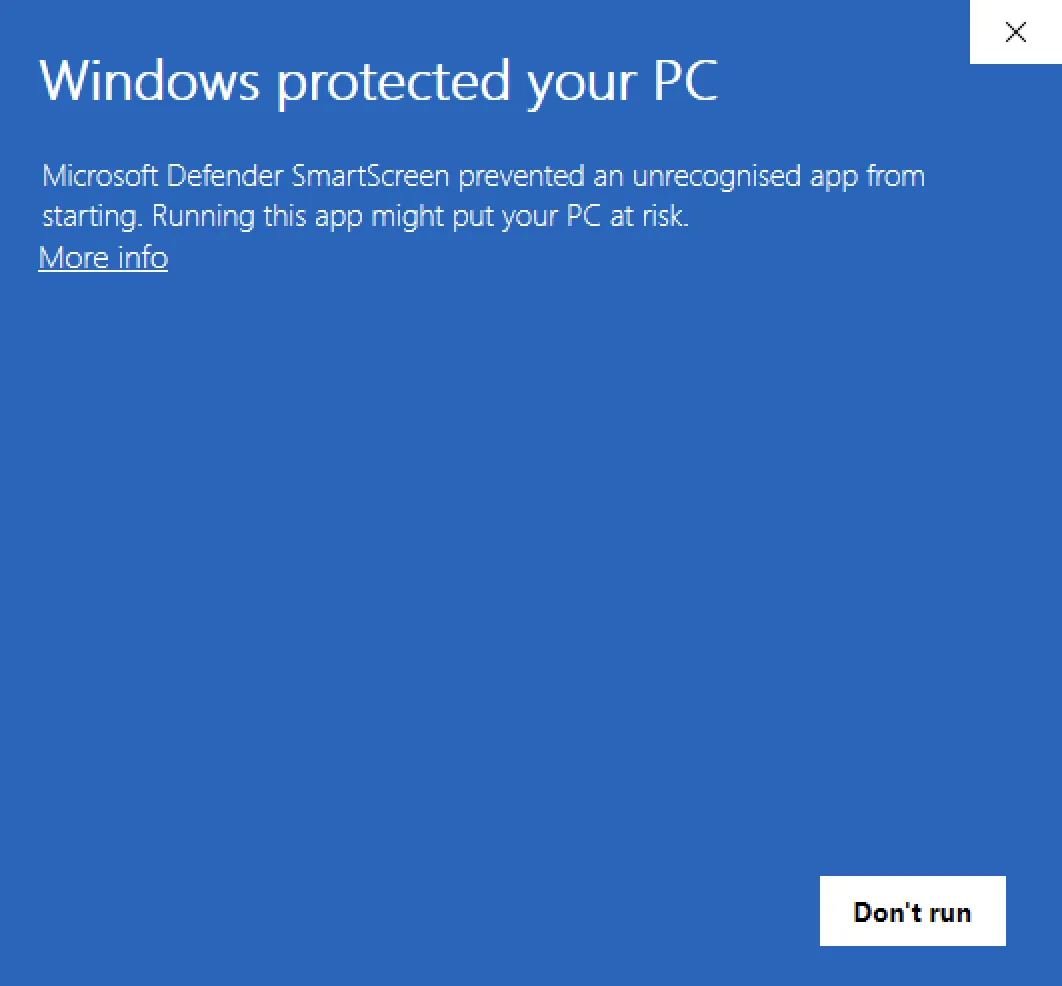
SmartScreen then shows the application name and publisher, and a Run anyway button appears next to Don’t run. Click Run anyway to start the installer.
The MSI installer then continues. These prompts appear when you download and first run an installer. The installed app opens without them. WinSparkle downloads updates outside the browser, so Edge does not warn about them. SmartScreen may still warn once for an updated installer. The prompts stop after the installers are code-signed and the signing certificate gains enough SmartScreen reputation.
macOS: open the app the first time
Section titled “macOS: open the app the first time”The macOS .dmg packages are not yet signed with an Apple Developer ID or
notarized by Apple. Each app has an ad-hoc signature instead. Until that
changes, macOS blocks the first launch and reports that it cannot verify the
app. This warning appears because Apple has not checked the app. It does not
mean that the download is damaged.
- Open the
.dmgand drag the app to the Applications folder. - Open the app from Applications. macOS reports that it cannot verify the app. Click Done.
- Open System Settings and select Privacy & Security. Scroll to the Security section, find the message about the blocked Jonot app, and click Open Anyway. If Open Anyway is missing, open the app again and return to this screen within an hour.
- Confirm with your password or Touch ID, and then click Open Anyway in the dialog that follows.
On macOS 14 and earlier, you can instead Control-click the app in Applications, choose Open, and then click Open in the dialog.
macOS remembers this choice for the installed app, so later launches open without the prompt. Allow only the Jonot app this way. Do not turn off Gatekeeper for the whole Mac.
Android apps
Section titled “Android apps”Jonot Kiosk (Android)
Section titled “Jonot Kiosk (Android)”Tablet self-check-in kiosk.
| Install method | Link |
|---|---|
| Google Play (recommended) | Get it on Google Play |
| Direct APK (on-premises / MDM) | jonot-kiosk.apk |
Jonot Desk (Android)
Section titled “Jonot Desk (Android)”Staff desk app for calling and managing tickets.
| Install method | Link |
|---|---|
| Google Play (recommended) | Get it on Google Play |
| Direct APK (on-premises / MDM) | jonot-desk.apk |
Jonot Display (Android)
Section titled “Jonot Display (Android)”Output-only queue display for TVs, monitors, and tablets, including Android TV and Fire TV.
| Install method | Link |
|---|---|
| Google Play (recommended) | Get it on Google Play |
| Direct APK (on-premises / MDM) | jonot-display.apk |
Verify your download
Section titled “Verify your download”The desktop host, kiosk, desk, and display each publish their own
SHA256SUMS, SHA256SUMS.asc, and Jonot<App>-public.asc files
under their respective <app>/latest/ paths (e.g.
host/latest/jonot-host-public.asc, kiosk/latest/JonotKiosk-public.asc,
desk/latest/JonotDesk-public.asc, display/latest/JonotDisplay-public.asc).
All four are signed by the same Jonot release GPG key
(C2EF 70E9 7821 0056 C5C8 2F42 E588 CB26 8697 F7C3). The detached signature
is in SHA256SUMS.asc. Verify the signature to confirm that Jonot published the
checksum file. Then verify the checksum to confirm that your download matches
the published file.
SHA256SUMS lists the .deb, .rpm, and .msi files but not the .dmg, so
sha256sum -c --ignore-missing does not cover the .dmg. The .dmg is not
notarized, and its ad-hoc signature does not identify Jonot as the publisher.
Download it only from downloads.jonot.io.
The steps below use the host as the worked example. Substitute kiosk,
desk, or display (and JonotKiosk-public.asc, JonotDesk-public.asc, or
JonotDisplay-public.asc) for the other apps.
Step 1 — download the checksum file and public key
Section titled “Step 1 — download the checksum file and public key”curl -fsSLO https://downloads.jonot.io/host/latest/SHA256SUMScurl -fsSLO https://downloads.jonot.io/host/latest/SHA256SUMS.asccurl -fsSLO https://downloads.jonot.io/host/latest/jonot-host-public.ascStep 2 — import and verify the key fingerprint
Section titled “Step 2 — import and verify the key fingerprint”gpg --import jonot-host-public.ascgpg --fingerprint C2EF70E978210056C5C82F42E588CB268697F7C3The fingerprint must match C2EF 70E9 7821 0056 C5C8 2F42 E588 CB26 8697 F7C3
exactly. If it does not, discard the download.
Step 3 — verify the checksum file signature
Section titled “Step 3 — verify the checksum file signature”gpg --verify SHA256SUMS.asc SHA256SUMSYou should see Good signature from "Jonot Release <releases@jonot.io>".
Step 4 — verify your downloaded file
Section titled “Step 4 — verify your downloaded file”sha256sum -c SHA256SUMS --ignore-missingAn OK result confirms the file is intact.
Release notes
Section titled “Release notes”See the host changelog for per-version release notes. All native app releases are also listed on the GitHub Releases page.